 As I write this, there is only one day left to Chanukah and a couple of shopping days before Christmas. I figure there’s no need for a last minute gift list with obvious entries. Let’s face it, if you didn’t already get an HDTV or MP3 player for your home theater and gadget-loving giftees, you don’t need me to tell you that you could get them a plasma or an iPod. So here is the:
Non-Obvious Last Minute 2006 Holiday Gadget Gift Guide
Better headphones – Like a good monitor for your PC, a good set of headphones is an investment that may cost more than the MP3 player you use it with, but should last several through several upgrades (after all, it seems like Apple launches a new iPod every six months). My personal preference are in-ear models which make it sound like your music is emanating from somewhere in the middle of your head. (You get used to it.) They’re smaller and more portable than on-ear headphones, and I find that they block noise better than most noise canceling headphones without adding any distortion. Use them on airplanes and it will dramatically cut down on engine noise – you also won’t hear the pilot or the flight attendants at all, so use them wisely.
 For $500, perhaps you should expect miracles. The best headphones I have ever heard are Shure’s e500’s ($499 on Amazon); I still have the pre-production units I was supposed to have returned ages ago. It’s one thing to do the “hey, I never heard that detail in my music before” trick when listening to uncompressed music, but the e500’s manage to smooth out harshness while still retaining fine detail on MP3 files. The e500’s have an uncanny ability to make even compressed music sound good.
- For amazing sound quality with uncompressed music at less stratospheric prices, Shure’s e4c ($299) and Etymotic’s ER*4 ($299) fit the bill. But if, like most people, you are buying headphones to use with an iPod, Sansa, Zune, etc., then you’re probably listening to MP3, WMA, or AAC files where some of the detail is already gone. Buying the e4c or ER*4 is spending money for better sound quality than you need. The Shure e3c ($179) or Etymotic ER6i ($149) are significant upgrades from whatever came with your player. I have been living with the e3c for several years, and I find them supremely comfortable; if I was investing in headphones, these would be my choice. However, the ER6i also sound great and are a much better value – they can currently be found for just $82 at amazon.com.
 I have tested a half dozen wireless (“Bluetooth A2DP“) headphones, and the winner for comfort and design is Logitech’s new FreePulse ($99). But the first truly high fidelity Bluetooth headphones are from Etymotic: the et8 ($299). Like the company’s other headphones, these go in your ear. Unlike those, these make you look like a dork. Personally, I’m willing to sacrifice looks for fidelity and wire-free convenience, but I’m a geek who analyzes technology for a living; you’ll need to judge your gift giving situation yourself.
Accessories for your accessories – Who knew that even normal people would have so many gadgets that accessories for them would be a realistic gift suggestion?
 With so many cables and chargers lying around – and a must for home theater cabling – a label maker can help you make sense of everything. Brother’s PT-70 ($20) even comes pre-wrapped at office superstores, but the label tape that it comes with is wickedly difficult to remove from its backing (more expensive label tape is split down the back to make it easier to work with). Dymo’s LabelPoint 200 has been an efficient staple in my home theater, it appears to have been replaced by the LabelPoint 250 ($65). But it lacks a flag feature, which is ideal for quickly creating labels to put on cables. Brother’s P-touch PT-1400 is costs about the same after rebate (it lists for $169 but sells for $95 on amazon.com and carries a $30 rebate) and requires an extra cutting step with each label, but includes flags.
- To keep your power and data cables neat, there are lots of options. But what can you do about smaller cables – like headphones? This is where the cableyoyo people come in. Their mission statement is “finding simple solutions to nagging problems.” The original Cable YoYo ($5) is a simple piece of plastic much like a miniature electrical cord spool, while the similar, smaller Cable YoYo POP ($10) is intended to mount on the back of your MP3 player. They’re cheap, they look good, and they work well.
 Your digital camera needs an accessory, too. Digital picture frames have been around forever, but until recently they were too small, too expensive, or simply offered lousy image quality. Not all of this has changed – Parrot’s Bluetooth Photo Viewer ($149) is tiny (though it will give Bluetooth cameraphone owners the chance to send their pictures wirelessly, which is a demo that is really, really cool to watch). Ceiva has carved out a niche for people who want to put a digital photo frame in Grandma’s house; photos uploaded to ceiva’s website download to the frame automatically ($149 for the frame, $100/year for the service). For an ordinary digital picture frame – no Bluetooth, no subscription service required – try Westinghouse Digital’s DPF-0801 ($179). The Westinghouse is the first reasonably priced, reasonably sized frame I have tested that has a screen that can be viewed off-axis – critical when placed on a shelf, desk, or mantle.
 Flexity’s PowerSquid line ($13 – $80) is an elegant solution to the annoying problem of connecting multiple wall warts (those big brick things at the end of the power cords on all your gadgets) that you just can’t fit onto a standard surge protector. It looks unique (it must be the “cephalopod” design) and solves a problem nearly everyone has nowadays. I have three.
 Logitech MX Revolution mouse – Now, you may ask, why would anyone spend $100 on a mouse? Some of Logitech’s products are just intended to add style to your desk – the company’s diNovo keyboard ($199) is slick and gets lots of compliments, but I don’t type faster on it. But the Revolution mouse genuinely increases productivity. The wheel switches between smooth scrolling modes (for reading long web pages) and line-by-line click modes (for spreadsheets) automatically, based on what application you are in. Want to zip to the end of a long document? Flick the wheel – it’s weighted like a flywheel. Want to jump back and forth between documents? Flick the side wheel under your thumb (yep, there’s another wheel). There are other features, too: laser tracking, a battery meter, a quick-search button, and customizable everything. As long as your recipient is not left handed, this is the ultimate mouse.
 Sonos Distributed Music System – if you want to easily bring music to multiple rooms around your house, this is the system for you. Compared to buying a bunch of Squeezeboxes ($199 each, a review is in the works) the Sonos system is quite pricey ($999 for the most basic 2 zone system). However, nothing else on the market combines ease of installation, ease of use, and multiple zone music distribution like a Sonos system. That’s not entirely true; if you hire a custom installer and spend tens of thousands of dollars, you can get the same thing as the Sonos. My review can be found here. Sonos recently added a major software upgrade which gives users the ability to tap directly into Real’s Rhapsody subscription service – no PC required (though broadband is a prerequisite). This opens up the whole category to people without extensive digital music collections. (Note: Rhapsody is also tightly integrated with a specific MP3 player, SanDisk’s Sansa e280 Rhapsody edition ($249 at Best Buy), but a PC is required to make that work).
A Netflix subscription – Netflix lets you build lists of movies you want to see online, then they send you movies. Whenever you’re done watching it – the next day, two years later – you drop the movie in your mailbox and within a week the next one on your list shows up. I have been a Netflix customer for so long that I’m grandfathered into their old rate plan, but if you consider Netflix an alternative to a premium cable channel, the $17.99 plan for three movies out at a time is perfectly reasonable. Netflix allows you to give gift subscriptions from one to twelve months in length.
Logitech Harmony remote – If you’re looking for a single remote control to manage nearly any combination of home entertainment gear and without spending a fortune or hours programming it, a Harmony is perfect. Logitech bought the makers of Harmony a few years ago, and they have dramatically improved the look and price of the product line since then without changing anything else (Harmony remotes range from $129 to $499, and even the $129 model has all the basic functionality most anyone needs). The idea is simple: rather than controlling each device separately, you are offered choices of what you want to accomplish (“watch TV,” “watch DVD,” etc.). If something goes wrong, there’s a Help button that is genuinely helpful. Before Harmony can work this magic, you program the remote by connecting it to your PC and going to Harmony’s web site. There you fill out forms asking what devices you have connected, and how you use your system. That process still isn’t as simple as it absolutely could be, but it’s much better than any other consumer remote control on the market, and when you’re done, anyone in the household will be able to use even the most sophisticated setup.
 CardScan – OK, this is not the gift to get your significant other unless he or she is an anal retentive business traveler, but as practical gifts go, the CardScan can’t be beat for turning a huge pile of business cards into useful information. The CardScan Personal ($159) scans cards in black and white and is almost small enough to travel with, while the CardScan Executive ($259) scans slightly faster and in color. Both come with remarkable software that lets you easily remove or combine elements from duplicate contact records.
Finally, here’s an idea I guarantee you won’t see anywhere else: the perfect gift for the mother of a small child is… Nokia’s N93 smartphone. Yes, it’s outrageously expensive ($699 at NokiaUSA.com, plus service from T-Mobile, the only U.S. carrier it will work well on, plus another $50 for a 2 GB miniSD card). Yes, it’s enormous, and quite heavy.  And most women I have surveyed have no interest in the fact that it is also a smartphone with a nifty HTML web browser, that it has built-in WiFi, and that it will work on fast data networks should you take it with you on a trip to Europe. But the N93 has a 3MP camera with 3x optical zoom, a Carl Zeiss lens, and, most important, it records video with better-than-analog-TV resolution (640×480, 30 frames per second). For the new mother, Nokia’s N93 means that a camcorder is always around to capture anything cute their child ever does. These short video clips can be emailed to the grandparents and will actually be watched, unlike most camcorder footage. The N93’s relatively large size is an asset, since it will be easier to find in the diaper bag or deep purse that Mom is carrying. Now, Nokia is not marketing the N93 to mothers with small children – Nokia calls it a “multimedia computer,” aiming it at technology geeks who want the best digital imaging quality regardless of size and cost. But for the woman with a toddler and a diaper bag, the N93 guarantees she’ll get baby’s first steps on video, wherever those first steps may be taken.
Avi Greengart is the Principal Analyst, Mobile Devices for Current Analysis where he issues analysis and insight on mobile phones and everything that converges/competes with them: digital cameras, MP3 players, PDAs, GPS systems, Internet tablets, gaming devices, tiny notebooks, and anything else with a battery. Avi is also the editor of Home Theater View (http://www.hometheaterview.com/) a site covering digital entertainment published at extremely irregular intervals.
Please note: with the exception of Netflix, Avi did not pay for any of the products recommended here (all were sent by the vendors; most will be or have already been returned) nor was any money paid for inclusion in the list. Avi recorded his daughter’s first steps on a Nokia N93.




 How computers work, ha. There are little elves that jam the printers! It’s like the

 HDMI (High-Definition Multimedia Interface) connections are able to carry both the audio and video signal from one device to another, which is easy for hooking up devices, and also much cleaner from the living room perspective. HDMI is relatively new, and only became commercially available in 2005, but has become the effective standard for most newer digital cable boxes and DVD players, and is even featured in the Xbox 360 (
 It may seem unusual to have such flux in cables and connectors, but the real drivers for such change have nothing to do with picture quality, it’s all about
 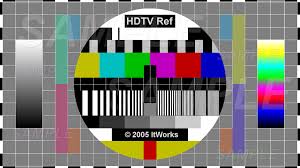 With the next-generations of media PCs, cable boxes, satellite receivers, DVRs, DVD players, and game consoles all offering HDTV services, the future has literally never looked so good. While there is no real winner or loser in the HDMI/DVI space, it seems extremely likely that HDMI is bound to be the dominant cable format for the next few years. Especially because it supports up to 10.2 gigabits per second throughput (that is a LOT of data) and has built-in HDCP support for the content industry. Although with all that fancy technology inside, the nicest part for consumers is finally having the convenience of only making a single connection from device to device!
 Let’s face it. The transition to HDTV has been a painful and confusing one. It’s bad enough that there are now 10 different types of TV technologies available in the market, but what’s worse is that display makers, content providers, set-top box manufacturers, and the entire PC industry has been pushing several completely different ways of connecting high definition components since the launch of the first HDTV products in 1998. What’s the end result? There are now millions of high definition products in the market, and they all have different plugs on the back. Component video, FireWire, DVI, and HDMI have all graced the back of a TV set at some point over the last eight years, and now consumers are thoroughly confused.
 That’s a tall order, but I didn’t think it’d be impossible. I’ve seen some new Toshibas and Thinkpads that I thought would fit the bill, but then I remembered a cool ASUS laptop I saw at CeBIT.




 Nothing gets your blood pumping like a nice ride through the peaceful trails of our great nation, being at one with nature, breathing the fresh air, observing the wildlife and gassing it over every obstacle in your way with Slayer blasting inside your helmet, right? Well the gods of technology have smiled upon us with the Autocom Auto-Volume Music System. This little gem was originally developed for street bikes but it works equally well for the off road rider too. It adjusts the volume of your favorite adrenalin inducing tunes according to the amount of noise picked up in a cleverly disguised microphone in the headphone connector. So now when you are riding full throttle you are able to hear every note of that wailing guitar solo and when you come to a stop and need to communicate with others, your not fumbling through a backpack looking for a volume adjustment knob on a Discman.
.jpg)
